Subtitle display & themes
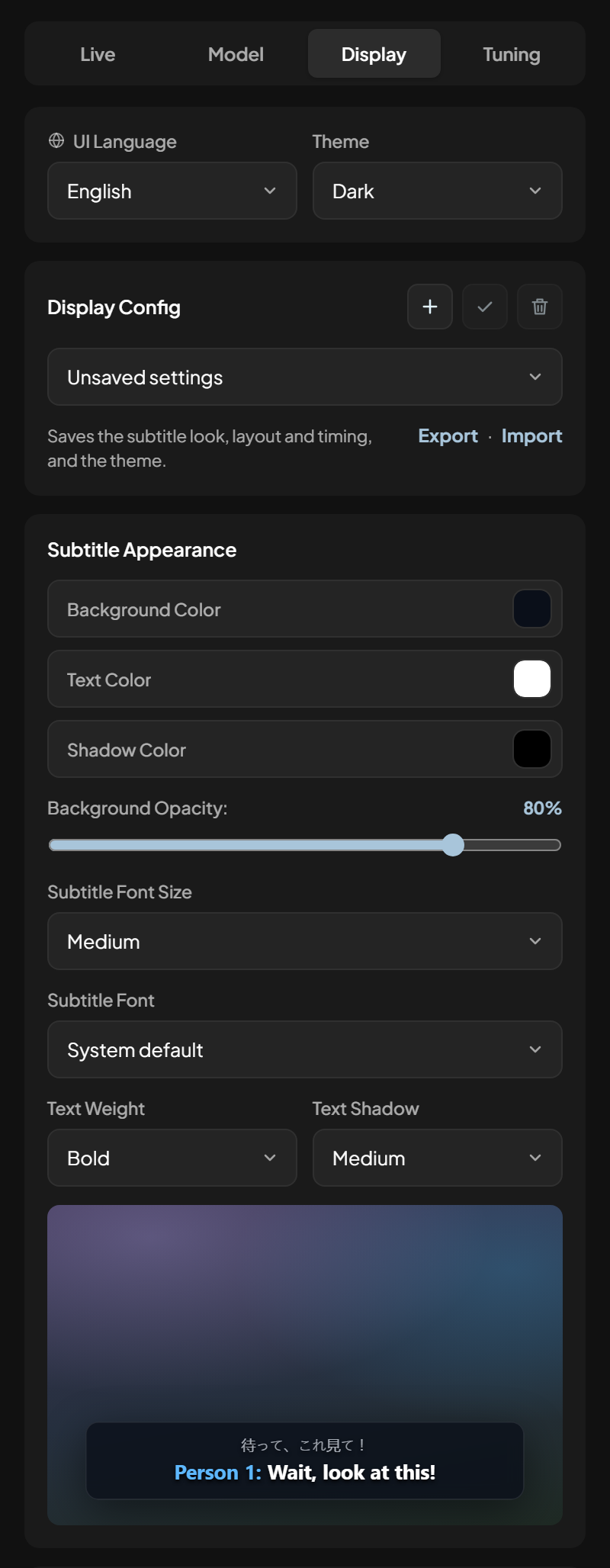
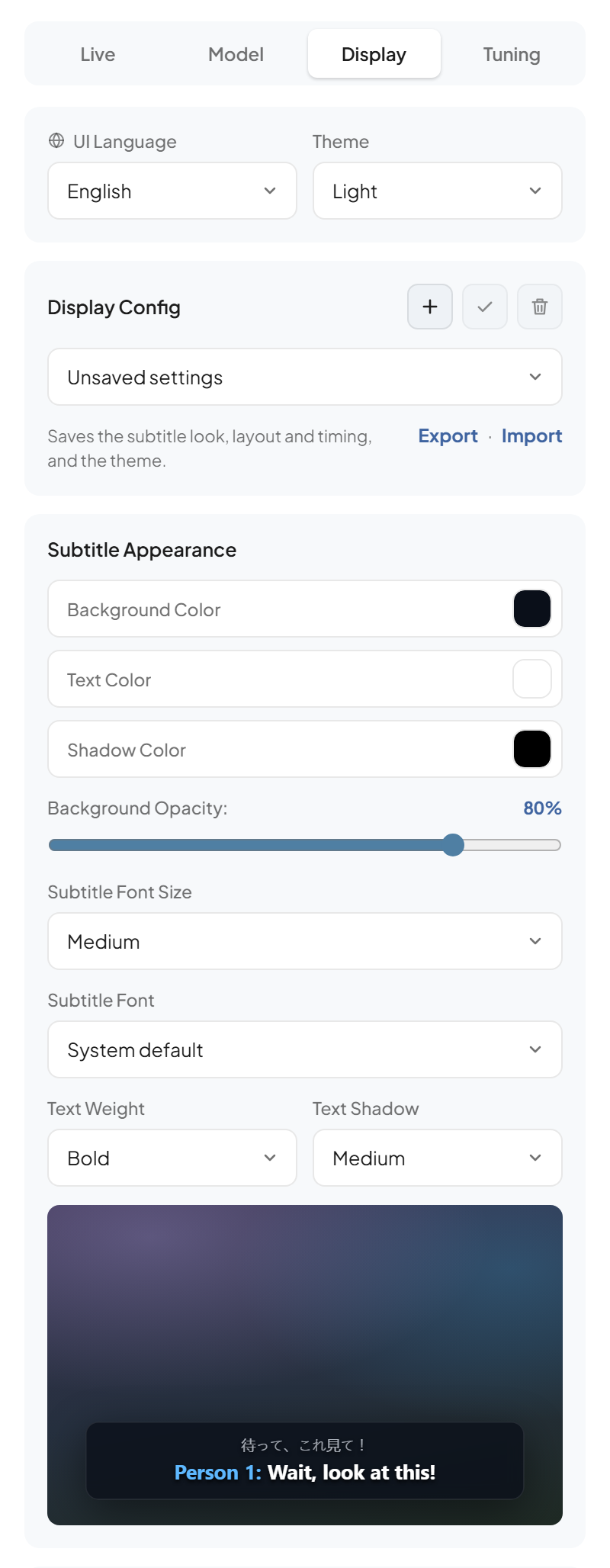
Subtitle appearance
The Display tab sets the subtitles' colours, background opacity (0 % means no box at all), font size (7 sizes), font (8 system fonts), text weight, and shadow or outline, with a live preview.
Subtitle layout
- Position: bottom, top, or wherever you last dragged the subtitles on the page (double-click them to reset).
- Original text (in Bilingual Mode): above or below the translation, and how big it is.
- History lines: show the latest line only, or one or two earlier lines too.
- Keep subtitle box on screen: keeps the box visible between lines.
How long each line stays up is set on the Tuning tab: Extra Time On Screen and Minimum Display Time.
Themes
The popup comes in:
- Dark and Light (the default): flat charcoal or white surfaces with a pale-blue status card, squarer corners and sentence-case titles — the same look as this site;
- Glass Dark and Glass Light: a glowing lavender background with see-through panels;
- Sakura Light and Sakura Dark: cherry-blossom pinks on a blush page or a plum night, in the glass style;
- the OLED family with a blue accent: OLED Light (white), OLED Dim (dark navy) and
OLED Black (true black
#000, with no background glow: on OLED and AMOLED screens, black pixels are switched off); - System, which follows Windows' light or dark setting (with Light or Dark);
- Custom, your own.
Dark and Light also change the popup's layout (corners and titles); the other themes only change colours.
Custom theme
Pick Custom and set:
- Style: Studio (the layout of Dark and Light), Glass (glowing background and see-through panels, like Glass Dark and Glass Light) or Flat (solid surfaces, like the OLED themes);
- Start from: any built-in theme, as a starting point;
- Colours: background, panels, accent and buttons;
- Text: headings, labels, text, hints and dropdowns.
Text that would be hard to read on your background is lightened or darkened just enough to stay readable. Save it with a display config to keep several.